What do you want to find out?
Google Timeline is now stored directly on users’ devices rather than in the cloud. Previously, this data was stored on cloud servers. But with the new update, users are no longer able to view it on a desktop.
If your Timeline looks incomplete, trips are missing, or nothing appears after switching phones, this article explains exactly why — and how to fix it.
If you followed the recommended actions sent out by Google in 2024-2025, it is possible that your Google Maps Timeline resides on your cellphone.
Steps to recover your Google Timeline Data if you Switched Devices
If Timeline Backup WAS enabled
- Open Google Maps
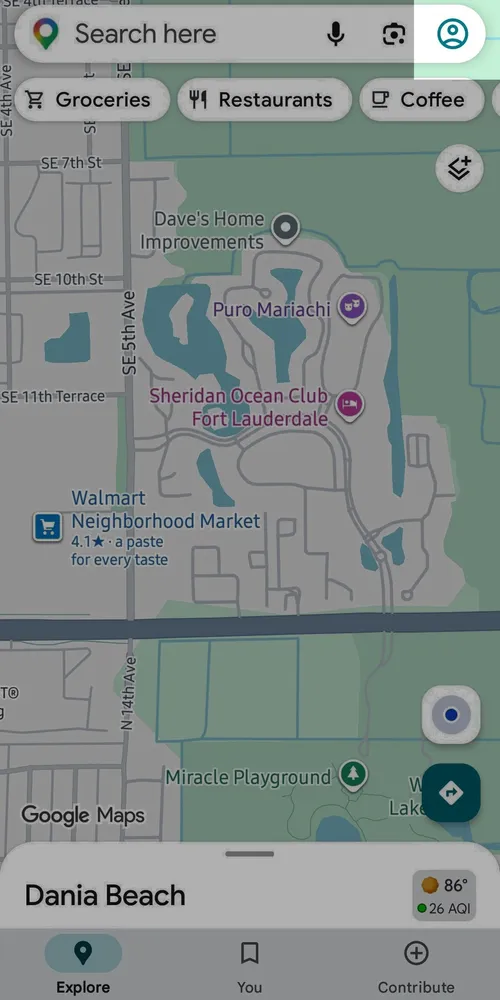
- Tap your profile photo
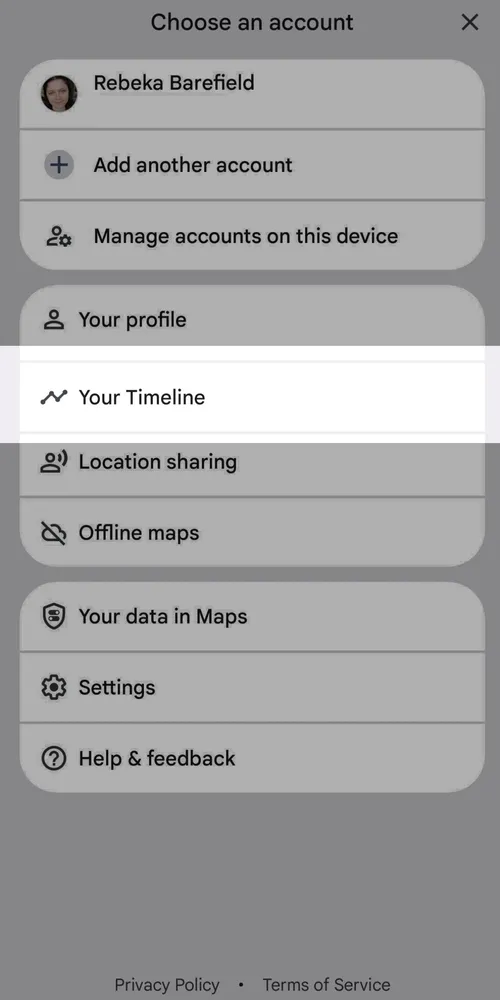
- Go to Your Timeline
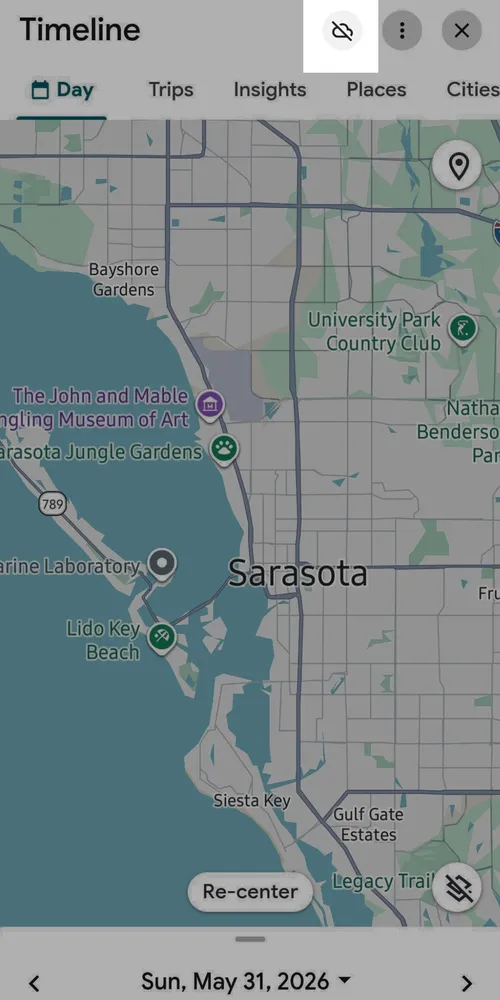
- Tap the cloud icon
- Select Import
Your historical data (as far back as your auto-delete settings allow) will appear on the new phone.
If backup was NOT enabled
Then your past routes and trips are stored only on the old device. If you still have the old device, When you switch to a new phone:
- Open Google Maps
- Tap your profile photo
- Go to Your Timeline
- Tap the cloud icon
- Turn on the Backup Toggle
Now that Backup is enabled, you import your Timeline to your new device with the steps from the previous list. General device migration tools might also bring the data over, but Google does NOT guarantee this.
Auto-Delete Also Changed
Google changed the default auto-delete period for Location History to 3 months.
If you never changed this setting, anything older than 90 days may already be permanently deleted. Even with backup enabled, you can only restore what wasn’t auto-deleted
To check your settings:
Google Maps → Profile → Your Timeline → Settings → Location History → Auto-delete
If you want to keep multi-year history, set it to 36 months, or Do not auto-delete.
Steps to Secure your Timeline in the Future
Turn on Timeline
When you turn on Timeline, you consent to Google regularly saving each of your devices’ precise locations to show you where you’ve been, including when Google apps aren’t open.
- Open the Google Maps app.
- Tap your profile picture or initial, and then your Timeline.
- Tap More (three dots in the upper right corner and tap on Location & privacy settings.
- Under “Location settings,” turn on “Location” and “Timeline” .
Back up your Timeline data
You can automatically back up your Timeline if you need to switch devices. When you back up your Timeline data, it saves an encrypted copy of your data on Google’s servers.
Important: It can take a few days for changes to your Timeline to reflect in a backup.
- On your Android phone or tablet, open the Google Maps app.
- Tap your profile picture or initial and tap on “Your timeline”.
- At the top right, tap the cloud.
- If auto-delete is turned on, turn it off.
- On the Backup screen, turn on Backup.
- Tap Turn on.
Adjust Background Data and Battery Optimization
Ensure that the app is not restricted by data or battery optimization settings. This ensures that your Timeline data is recorded even when the app runs in the background.
Enable Web & App Activity
Turning on Web & App Activity helps improve the accuracy of tracking and limit mistakes.
Quick Summary
- Timeline is no longer automatically synced to your Google Account
- Your trips now live on your device, not in the cloud
- Old Timeline data may not transfer to a new phone
- The new Timeline Backup feature is required for safe transfer
- Auto-delete may remove your older trips unless you extend the limit
If your Timeline appears incomplete or missing, it’s usually because:
- Backup was off, or
- Auto-delete removed older data, or
- Phone-to-phone migration didn’t include Timeline storage
How MileageWise Fits Into This
MileageWise’s Google Maps Timeline Import feature can only convert the data that currently exists on your device.
If Timeline data is missing due to Google’s new system, backup settings, or auto-delete, it cannot be recovered.
This is why keeping your Google Maps Timeline backup turned on is essential — especially if you rely on Timeline to create IRS-compliant mileage logs.