
Home » Google Maps Mileage Tracker » Google Timeline Missing
Last updated: February 26, 2026
Google has announced major updates to its Timeline feature. These changes are crucial for anyone who relies on this tool to track their location history and routes, especially since they can lead to your Google Maps Timeline history missing. This blog will help you understand the updates, troubleshoot any issues you may encounter, and offer an alternative for route tracking.
Table of Contents
Overview of Google Timeline History Update
Change to On-Device Storage
History data is now stored directly on users’ devices rather than in the cloud. Previously, this data was stored on cloud servers. But with the new update, users are no longer able to view it on a desktop. Therefore, if you followed the recommended actions sent out by Google, it is possible that your Google Maps Timeline has not gone missing, but instead resides on your cellphone.
Why is Google making these changes?
This update aims to improve user privacy. By storing Timeline History data on mobile devices, Google eliminates the risk of broad geofence warrants that previously allowed law enforcement to request data about devices near a specific location. Furthermore, it addresses allegations that Google misleads consumers by tracking their locations if they left ‘Web & App Activity’ on, but ‘Location History’ off.
Timeline Data Lost Despite Cloud Backup
Many users have reported that their Google Timeline data was deleted. This issue followed Google’s recent update, which moved Timeline storage from the cloud to individual devices. While the company claimed data could be restored with backup, some users still lost years of location history.
Steps to Recover Google Maps Timeline
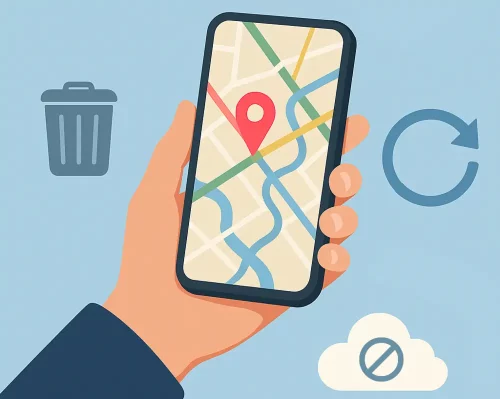
If your Google Maps Timeline history is missing, it is possible that it’s available on your phone or it’s backed up. Open Google Maps on your phone, including on your previous phone if you recently switched devices, and select “Your Timeline”. Check the specific dates you need—your history may still be available there.
If those trips are missing, check for an existing Timeline backup:
- Open Google Maps and tap your profile picture.
- Select “Your Timeline.”
- Tap the cloud icon at the top.
- Under “Your backups,” select the device whose backup you want to check.
- Tap the three-dot menu and select “Import,” then follow the prompts.
Please note that the backup may have been saved on another Google profile. If no copy remains on a device or in a backup on any of your Google profiles, permanently deleted Timeline history cannot be recovered. Turning on recording or changing auto-delete settings can help protect future trips, but won’t restore missing ones.
Steps to Preserve Your Data
Follow Google’s Updates
As previously mentioned, Google sent out instructions to help with the transition. Always read Google’s email updates and instructions.
Check your Timeline Settings
Make sure that you turn your Location History ON and auto-delete OFF. Turn on Web and App Activity for enhanced accuracy. You can access these in your Timeline settings in the Google Maps app.
Adjust Background Data and Battery Optimization
Ensure that the app is not restricted by data or battery optimization settings. This ensures that your Timeline data is recorded even when the app runs in the background.
Backup Options
You also have the option to back up an encrypted copy of your Timeline data to your account. This backup ensures that you can transfer your data to a new device if necessary and enables Google Timeline recovery if your device is lost, reset, or becomes unusable.
Read our dedicated article about Google’s Timeline updates and recommended actions to secure your Timeline.
Need Those Trips for Your Mileage Log?
One of MileageWise’s standout features is the Google Timeline Integration, designed to make use of Google Takeout to create IRS-compliant mileage logs with ease from your history data.
If your Timeline trips are still available on your phone, put them to work in your mileage log.
Export your data and import it into MileageWise to identify car trips, match locations with addresses, and organize your business mileage. Choose the Mileage Log from Google Maps app for your phone, or use the web dashboard to import to test the import:
Try the leading Google Timeline to Mileage Log solution now!
Mileage Log from Google Maps App


Desktop Google Timeline Import
Customer Success: AI Wizard Saves Deductions
As a delivery driver, I rely on accurate mileage records for tax deductions. When I realized my Google Maps Timeline history was missing, I thought I’d lost months of valuable trip data for good. That’s when MileageWise saved me.
Instead of struggling to remember every drive, I used their AI Wizard, which automatically rebuilt my past trips. It pieced together my routes and turned them into a complete mileage log without the guesswork. What could have been a stressful and costly mistake became a quick fix. Thanks to MileageWise, I recovered my missing records, saved money, and learned I don’t have to depend on Google Maps alone for my mileage tracking.
Alternative Tools for Tax-Ready Mileage Logs
Mileage Log Tax Preparation Service
For those who prefer to delegate the task to professionals, our Mileage Log Tax Preparation Service offers a stress-free option. Our experts will create your mileage log, ensuring accuracy and IRS compliance. With this service, you can leave the number-crunching and log-building to us while you can focus on operating your business.
AI Wizard Mileage Log Generator: Powerful DIY Solution
If you prefer to stay in control, our AI-powered Mileage Log Generator is your ultimate DIY tool for reconstructing mileage logs. Accessible via our user-friendly web dashboard, it leverages cutting-edge technology to help you rebuild past mileage with maximum flexibility and accuracy. From missed stops to entirely deleted Google Location History, this tool empowers you to restore your trips and create an audit-ready mileage log with minimal effort.
MileageWise App: Ongoing Mileage Tracking Made Simple
For ongoing tracking, our Mileage Tracker is the perfect alternative to Google Timeline. With its ad-free interface and seamless features, it keeps your mileage logs accurate and up-to-date without the need for manual effort. Whether you’re a gig worker, a business owner, or simply looking to stay organized, the app ensures you’re always audit-ready.
Final Thoughts
Have Timeline data on your phone or in an export file? Try importing one month for free to see how MileageWise turns your existing trips into organized mileage records.
Missing some or all of your business trips? Explore how the AI Wizard can help you reconstruct mileage records using the information you still have. If you’d prefer help preparing your log, contact our team about the Mileage Log Tax Preparation Service.
Try the leading Google Timeline to Mileage Log solution now!
Mileage Log from Google Maps App
Desktop Google Timeline Import
FAQs
Why can't I find my Google Timeline data on the web anymore?
With Google’s latest update, Timeline data is now stored directly on your device rather than in the cloud. As a result, it is no longer accessible via the web. You can only view it on the device where it is stored.
Additionally, if you see your Google Timeline missing, check your settings to ensure auto-deletion is turned off and that Location History is enabled.
Why was my Timeline deleted?
One reason for this might be that you didn’t take action by the deadline in 2024 to keep your Timeline. Furthermore, there has been an issue that led to the deletion of the Timeline of several users in March 2025. Only if you enabled cloud backup are you able to restore it, and even that didn’t work for everyone.
How do I recover Google Maps timeline history?
First, check the correct Google account and the phone where your trips were recorded. If the history is still missing, open Timeline and tap the cloud icon to check for an existing backup. On Android, select the relevant device under “Your backups,” then use the three-dot menu to import it. Without a surviving device copy or usable backup, permanently deleted Timeline history cannot be recovered.
What are the alternatives to Google Timeline for route tracking?
MileageWise is a notable alternative, especially for work-related tracking. MileageWise’s solutions, such as the Mileage Log Tax Preparation Service, AI Wizard, and Mileage Tracker App, make it an excellent replacement for Google Timeline, offering more tailored options for self-employed individuals and business owners.