

What do you want to find out?
Similar to importing clients, you can import your fixed trips from a Microsoft Excel (.xlsx) or a semicolon-separated (.csv) file. The maximum size of the document that can be imported is 1 MB.
Tutorial Video
Importing fixed trips
To import your fixed trips (listed in a CSV or Excel mileage log), go to the Trips menu and select Import trips.

In the Import fixed trips interface, first, select the data source type.

Read about importing your Google Maps Timeline data.
If your addresses are currently in a single column (e.g., street, city, state, and ZIP code together), please contact our customer support team. They can assist you in separating the data into the required format for successful import.
After selecting the file, the system checks if its format is correct. If so, click Upload file.
After selecting the file type, you can download our sample file to try out the import, as well as use it as a template to edit your own import file.
Click next step, then click on the right side of the interface to select the file to import. The file containing the trips can be in CSV or XLSX format (or JSON for Google Timeline imports).

Then, you will have to select your Default trip purpose. Every trip of yours will be categorized as such, so choose one that is true for most of your trips.
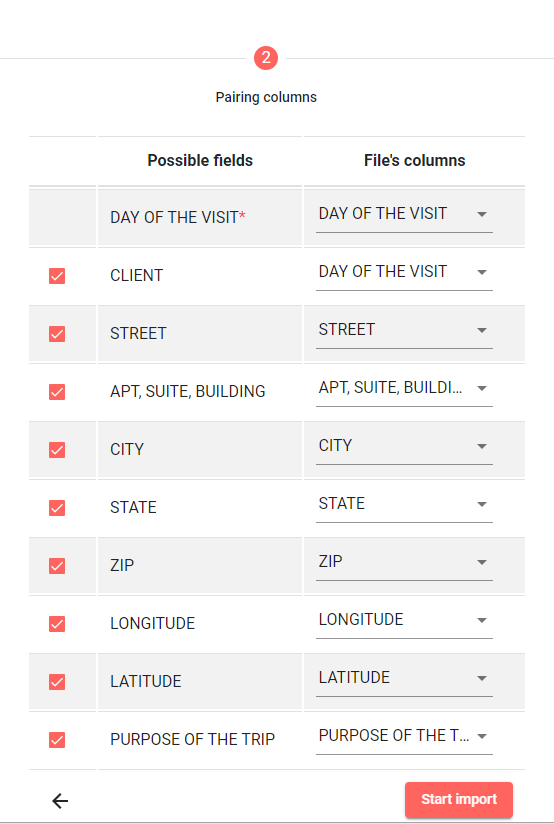
Then, the columns in the table must be associated with the fields that can be imported. If you create your import table based on the sample file, you will skip this step because the system will recognize every column. If you upload a table with different column names, you can match the appropriate ones with the list.
Among the fields, the day of the visit (year, month, day) and the name of the client is mandatory, and we recommend entering the address data as accurately as possible so that the system can identify the client. If one of the fields is not included in your import file (eg latitude, longitude, purpose of the trip), uncheck the box in front of the field to indicate that you will not upload that information.
When you have finished setting up, click on Start import.
If there is no trip in the import file for the selected period, you will receive the following error message. Go back to selecting the vehicle and period menu and change the period!

If the period is OK, the import will start. The time required depends on several factors.

Clicking on the View current status button, a list of fixed trips will be displayed, and in the upper fields, we will indicate where the process is: how many trips have been imported successfully, how many are in progress, and how many trips could not be imported.
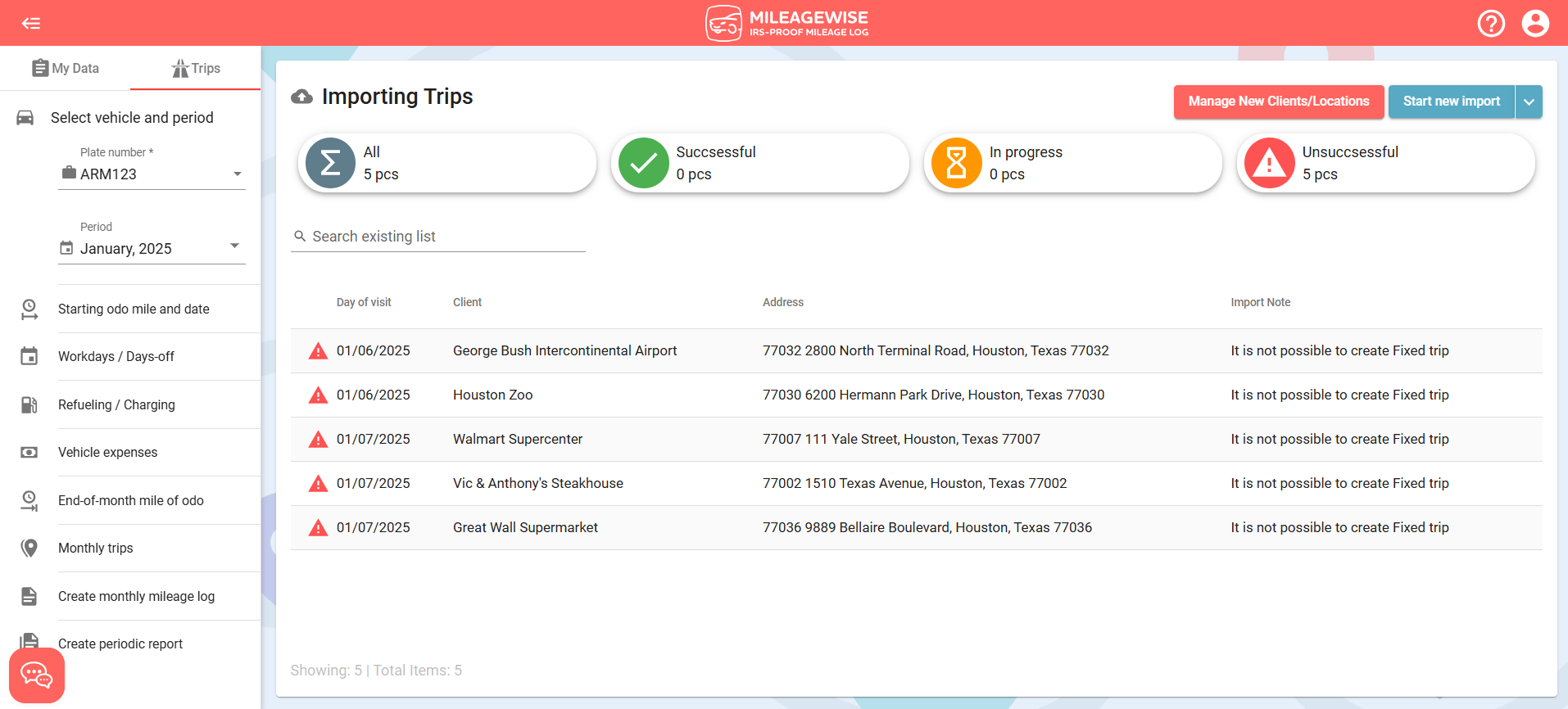
The successfully created trips can already be seen in the Trips menu

The system records the date and time of the trips if you imported a Google Timeline file, which appear in the daily trip view:

Similarly, we insert imported trips under previously recorded fixed trips.
You can edit the days for which you have imported fixed trips. Open the day in Calendar or List view. Imported trips are marked with the  icon. You can delete trips individually, change the purpose of the trips, change the order of the trips, and add new fixed trips.

You also have the option to delete all imported fixed trips. In the Fixed trips / Mobile app, select Delete all imported trips with the drop-down arrow right next to “Import Trips”

General information about importing fixed trips
- Even if your file contains trips for multiple months, you can only import one month at a time, make sure that you select the correct year and month within the system before starting the process. You can use the same document to import your trips separately for each month.
- Only one import can run at a time, and do not edit the given period during the import process!
- You can upload up to 500 fixed trips/month/file. You can upload as many files as you want.
- IMPORTANT! Daily departure/arrival point does not have to be on the list since the software can identify the clients and the import can still be completed. The imported trips will be inserted between your daily departure and arrival points.
- The program does not duplicate during the import process! So, if a client is already listed on a given day, it will not duplicate.
- The software does not change the order of the imported trips, if there already are some recorded trips on a specific day, the imported trips will be added in after them. The order of the trips can be changed as needed after the import process has finished.
- Days off and holidays are not taken into account during the import process. If you’ve specified certain days as days off, but the files contain trips for those days, the trips will still be added as fixed trips for those days.
- For previously recorded refuelings/chargings, insert the imported trips after the refuelings/chargings. As this order may differ from the actual route, we recommend that you record the refuelings/chargings after importing.
- Refuelings/chargings may be included in an import file based on GPS tracking. If this is recognized, we will indicate it in a comment in the List view. These trips will not be imported, refuelings/chargings must be entered manually.
- Clients visited in the import file are compared with existing clients. We can identify the client if the name and address details are the same or if the coordinates are close enough to an existing client (within 0.1 miles). If the client is not in the database, we add it as a new client. If new clients with the same name but different addresses are listed, we create new clients by numbering them differently.
- In the case of an existing client identified in the client database, we will match it with the trip purpose already included in the database, regardless of what is listed in the import file.
- If you use your MileageWise account with multiple users, all users except “mobile app” users can import fixed trips. Notification of successful import will be received by the Administrator.