
Home » Google Maps Mileage Tracker » Google Driving History
Last updated: September 23, 2026
Google driving history primarily refers to the travel information captured by Google Maps Timeline. This feature records your past locations and travel details when enabled. If you want to know how to see and manage this data, especially with the 2025 changes, you are in the right place. We will walk you through how to use this powerful feature for everything from personal curiosity to tax compliance.
Table of Contents
Understanding Your Google Driving History
Shifts in how Google Maps Timeline data is stored have changed how you access your Google driving history. Now, this data is stored exclusively on your phone. This means desktop access is no longer available. This change helps your privacy but makes backups essential for data security and transfer.
Accessing Your Driving History
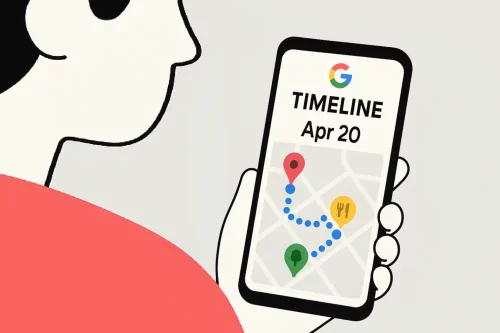
Accessing your driving history recorded by Google is straightforward. Open the Google Maps app. Tap on your profile picture at the top right, then select “Your timeline.” Here you will see a detailed record of your routes, places you visited, and timestamps. Trips tagged as “driving” will be the ones taken by car. Google Maps can make mistakes, so it is always good to check if your Timeline is accurate. Here’s a video guide if you’re a visual type.
Found your trips? If you need a mileage log for taxes, you can import available Timeline data into MileageWise, review your drives, and create a report.
What’s Stored and Why It Matters
Your Google driving history on Timeline is surprisingly detailed. It includes:
- Turn-by-turn routes you took.
- All your stops and the time you spent at each.
- Addresses matched with POIs where applicable
- Dates and times of your travels.
- The mode of travel, whether driving, walking, or public transit.
- Miles covered during your trips.
This data is incredibly useful for personal recall and business purposes. For example, the IRS requires you to keep three years of mileage logs if you applied for mileage deduction. Google Timeline, if you set it up and save it right, can help you meet this rule.
Avoiding Data Loss: Managing Auto-Delete and Backups
If you have “auto-delete” switched on, your historical driving data might disappear after 3, 18, or 36 months. This can lead to the loss of those precious memories and seriously mess up your business records. To prevent this, back up your Timeline and check your settings from time to time. This ensures an encrypted copy of your driving history can be restored if you lose your device or get a new one.
The move to on-device storage serves privacy and safety, but makes managing your data harder. Read our dedicated article about Google’s Timeline updates and recommended actions to secure your Timeline.
Troubleshooting Your Google Driving History
Sometimes, your Timeline might not show everything you expect. Here is why your data might be incomplete and how to fix it.
Missing Driving History?
There are a few common reasons why your driving history might look incomplete:
- Location History Off: Timeline only works if Location History is turned on in your Google account. Make sure it is active.
- Auto-Delete Enabled: As mentioned, if auto-delete is on, older data disappears. Check your settings.
The above-mentioned settings may have changed because you didn’t opt in during the transition period, or they might have just reset because of glitches (especially in early 2025). Another reason why checking your data and settings every now and then is crucial. Furthermore:
- Weak GPS Signal: If your phone had trouble getting a GPS signal, some trips might not be fully recorded.
- Battery Saver Modes: Aggressive battery saving can sometimes stop location tracking.
- On-Device Storage Limitations: Remember, your data is primarily on your phone now.
Managing and Editing Your Data
You have full control over your Timeline data. You can:
- Edit trips: If a trip is wrong, you can manually adjust routes or change the mode of transport.
- Delete individual trips or days: For privacy or accuracy, you can remove specific entries.
- Turn Location History On/Off: This is your main control switch for recording your movements.
- Set Auto-Delete: Decide how long Google keeps your data.
Tap to learn more about managing your Location History.
Using Google Driving History for Business and Legal Needs
Beyond personal use, your Google Maps driving history is a powerful tool for businesses, tax compliance, and even legal investigations.
IRS Compliance and Mileage Tracking
Accuracy is key for tax deductions. Many users find Google Maps Timeline very reliable for tracking work-related driving. It helps identify route inefficiencies and reconcile expense claims.
- IRS compliance: U.S. law requires keeping three years of mileage logs. Google Timeline, if properly set up and saved, can be used to create those mileage logs for many users.
- Employee reimbursement: Many businesses use Google Timeline data to process employee travel claims. Some even use it to support corporate tax filings and audits.
However, Google Timeline is not specifically built for tax documentation. While it helps reconstruct missed trips, dedicated mileage trackers offer more features for IRS compliance, like automatic categorization and detailed reports.
Legal and Investigative Uses
Location history from Google accounts (including reviews and check-ins) is used in private investigations. They can reconstruct someone’s driving or travel history, especially when official DMV records are not complete.
It is important to note that the shift to on-device storage for Timeline data helps limit external access and addresses privacy concerns. It also helps prevent broad police surveillance (like geofence warrants).
MileageWise: Your Solution for IRS-compliant Mileage Logs
Understanding your driving history on Google is the first step. But for serious mileage tracking for tax deductions or business reimbursements, you need a powerful, IRS-compliant solution. That’s where MileageWise comes in.
With the Google Maps Timeline Integration, you can turn your Google Location History into a mileage log. It’s simple: Export your Timeline data → Import to MileageWise → Review drives → Create a mileage report.
Try the leading Google Timeline to Mileage Log solution now!
Mileage Log from Google Maps App


Desktop Google Timeline Import
Customer’s deduction Saved by MileageWise
Last year, I was hit with the dreaded IRS audit. I was about to piece together my mileage log in Excel when I realized my notebook with all my trips and odometer readings was gone! I was convinced I’d lose out on thousands in deductions. Then I found MileageWise’s Google Maps Timeline integration. It pulled my location history straight from Google and rebuilt every trip I’d taken. Within hours, I had a complete, IRS-ready mileage log ready to hand over. The auditor accepted it without a single question. MileageWise didn’t just help me, but saved me from a financial disaster.
Conclusion
Your Google driving history provides valuable insights into your travels. While it offers a strong foundation, especially with the latest on-device storage changes, dedicated tools like MileageWise supercharge your ability to claim every eligible mileage deduction.
Here’s what you need to remember:
- Access on Phone: Your Google Timeline is now on your mobile device.
- Backup is Key: Back up your Timeline data to your Google account to prevent loss.
- Manage Auto-Delete: Adjust settings to keep your historical data for as long as you need it.
- Consider Compliance: For IRS-compliant logs, Google Timeline provides data, but dedicated trackers like MileageWise offer the compliance features you need.
- MileageWise: Leverage your Google data with MileageWise’s unique import feature to create fully compliant, accurate mileage logs effortlessly.
By understanding and properly utilizing your Google Timeline, you can ensure accuracy, compliance, and significant tax savings.
FAQ
How do I see my driving history in Google Maps?
Open Google Maps → tap your profile photo → Timeline → choose a date. Drives have a car icon; tap to see route, distance, and time.
Can I see my Google driving history on a computer?
No. Google Maps Timeline is now viewed in the Google Maps app on your phone, where its data is stored. If you need a mileage log on your computer, you can export available Timeline data from your phone and import it into a compatible tool.
Why isn’t Google Maps showing my driving history?
First, check that you’re signed in to the right Google account and looking at Timeline on the phone that recorded your trips. Then check whether Timeline was turned on and whether auto-delete removed older data. GPS or phone settings may also have caused gaps. See our guide to missing Google Timeline history for steps to investigate.
How far back does Google Maps driving history go?
There is no single time limit that applies to everyone. You can see trips only for periods when Timeline recorded and retained your data. How far back it goes depends on your settings, any trips you deleted, and whether older data is still available on your device or in a Timeline backup. Check your earliest available date in the Google Maps app.
Can I recover deleted Google driving history?
It depends on where the data is still available. Check Timeline on your devices and whether you have a backup you can restore. If the trips were permanently deleted and no copy remains, MileageWise cannot retrieve them from Google. Our missing Timeline guide can help you check what remains.
Can I edit drives or days in Google Maps Timeline?
Yes. In the Google Maps app, open Your timeline and select the date or trip you want to review. You can correct certain trip details or delete entries. Review changes carefully if you plan to use the history for business mileage records.
Can I use Google Maps driving history for a mileage log?
Yes, available Timeline trips can help you reconstruct where and when you drove. But Timeline is not a complete mileage log by itself: you still need to check the trips, identify business drives, and add any details your records require. If your Timeline data is available, MileageWise can help you import and organize trips into a mileage report.