

What do you want to find out?
What Are Global Settings in MileageWise?
The Global Settings in MileageWise allow you to control how your mileage logs and app behave across your entire account.
Any changes you make here will apply to all vehicles and all mileage logs within your account.
This helps you keep everything consistent without adjusting settings one by one.
Where to Find Global Settings
To access Global Settings in the MileageWise app:
- Open the app
- Go to the Profile menu
- Locate Application Settings
- Tap on Global Settings
From here, you can customize display options, time settings, and units.
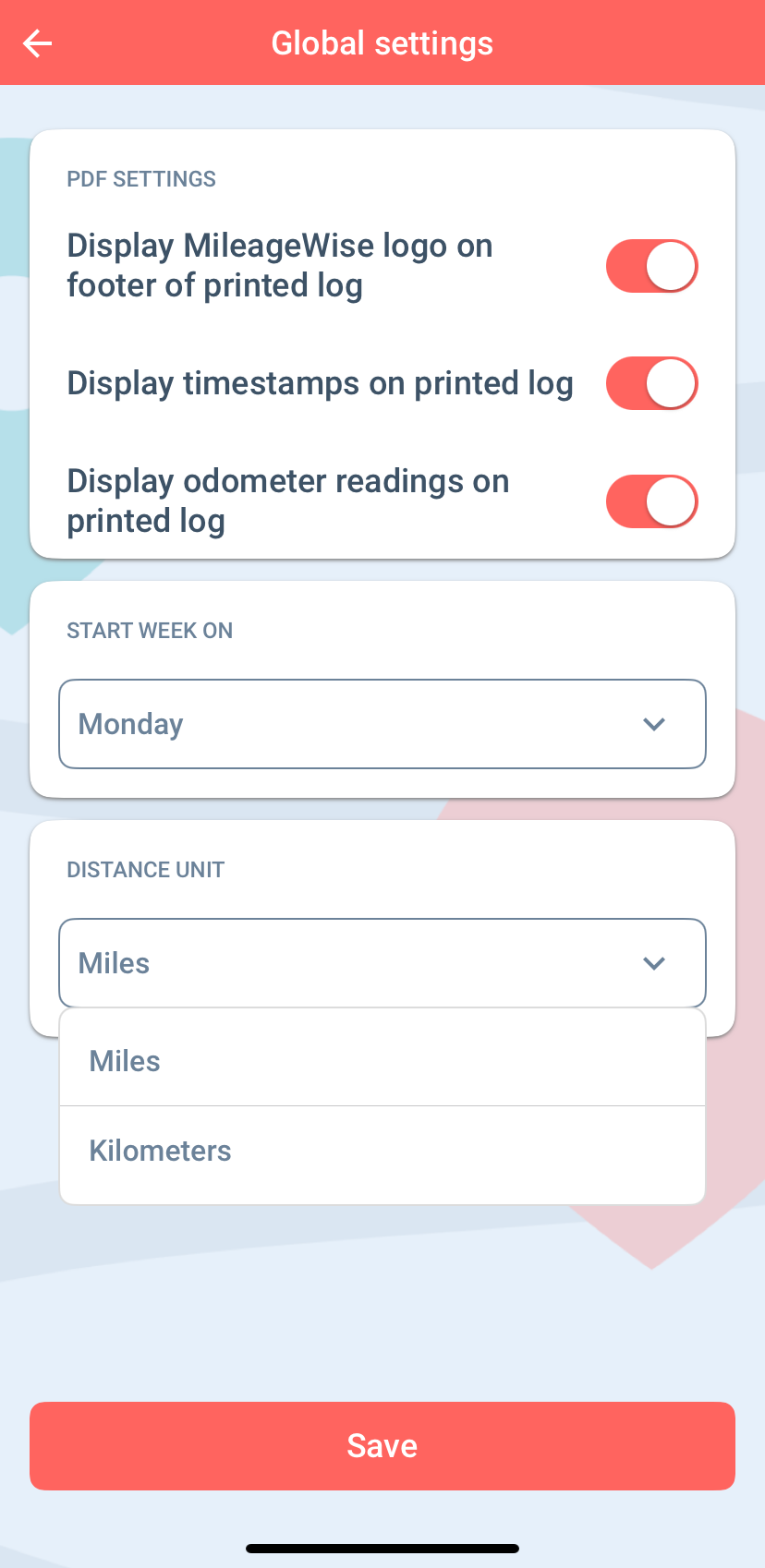
Customize Your Mileage Log PDF
The Global Settings in MileageWise let you control how your exported mileage logs look.
Display MileageWise Logo on PDF
You can choose whether to show the MileageWise logo and footer on your final mileage log.
- ON → The MileageWise footer will appear on your PDF
- OFF → The footer will be removed from your exported log
Display Timestamps on Mileage Logs
You can decide if each trip should include start and end times.
- Turn this ON to include timestamps for every trip
- Turn this OFF if you only want distance and trip data
This is useful depending on how detailed you want your logs to be.
Display Odometer Readings
You can also choose to include odometer readings in your mileage logs.
- Turn this ON to show starting and ending odometer values
- Turn this OFF if you are not using odometer-based tracking
This option is especially helpful if you want extra verification in your reports.
Adjust Date and Time Settings
The Global Settings in MileageWise also let you control how your calendar is displayed.
Choose Start Day of the Week
You can select which day your week starts on in the Trips tab:
- Monday
- Sunday
- Saturday
This helps align the app with your personal or business workflow.
After selecting your preferred option, tap Save.
Set Your Distance Unit
You can choose how distance is displayed in MileageWise.
- Miles
- Kilometers (km)
This setting affects all distance calculations and reports across your account.
Don’t Forget to Save Your Changes
After adjusting any settings:
👉 Tap the Save button to apply changes
If you leave without saving, your changes will not be applied.
Why Global Settings Matter
Using Global Settings in MileageWise helps you:
- Keep your mileage logs consistent
- Customize reports for your needs
- Control the level of detail in your logs
- Match the app to your workflow and preferences
Once set up, everything works automatically in the background.