Google Maps Mileage Calculator: Your Tool for Tracking Miles?

Ever wonder how to calculate the mileage for your next trip, or perhaps your daily commute? A Google Maps mileage calculator lets you do exactly that. Using tools like this can be a game-changer for budgeting, planning, and even for tax deductions. In this guide, we will break down your options to measure distances and leverage Google Maps for all your mileage needs.

The Directions and Distance Measurement feautres can both be used effectively as a Google Maps mileage calculator

Table of Contents

What Most People Mean by “Google Maps Mileage Calculator”

When people talk about a Google Maps mileage calculator, they’re usually looking for one of two things: either how to find the driving mileage along a specific route or the straight-line distance between two points. Both measurements are useful, but for very different reasons.

Driving mileage gives you the actual distance you’d travel by car, following roads and turns. This is crucial for things like business mileage deduction, knowing your fuel costs, or estimating travel time. It’s the practical, real-world measurement.

On the other hand, straight-line distance, also known as “as the crow flies,” is the shortest possible distance between two points, ignoring roads or obstacles. Think of it as drawing a direct line on a map. This can be useful for initial planning or understanding geographical separation, but it won’t help you with how many miles you actually drive.

Knowing the difference is key to getting the right information for your needs, especially when it comes to keeping mileage logs for tax purposes.

How to Measure Distance in Google Maps

Google Maps offers straightforward ways to measure distance, whether you are on your computer or using a mobile device.

On Desktop

To measure miles on Google Maps using a desktop computer, follow these simple steps:

  • Open Google Maps in your web browser.
  • Right-click on your starting point on the map. A small menu will pop up.
  • Select “Measure distance” from the menu.
  • Click additional points along the route or path you want to measure. As you click, a line will appear, and the total distance will update at the bottom of your screen in both miles and kilometers.
  • Read the total mileage shown at the bottom.

This method is great for mapping out custom walking routes, bike trails, or even estimating distances for off-road travel.

On Android

If you are using an Android phone, calculating distance is just as easy:

  • Long-press on your starting point on the map until a red pin appears.
  • Swipe up from the bottom of the screen to reveal more options, then tap “Measure distance.”
  • Move the map so the black circle lands on your next point, then tap “Add point” (a plus sign).
  • Continue adding points as needed.
  • View the total mileage displayed at the bottom of your screen.

This makes it a convenient Google Maps distance finder right in your pocket.

On iPhone and iPad

For iPhone and iPad users, the process is very similar to Android:

  • Long-press anywhere on the map to drop a pin.
  • Tap on the pin name or address at the bottom of the screen.
  • Scroll down and select “Measure distance.”
  • Drag the map to position the black circle over your next destination, then tap the “Add point” button (which looks like a plus sign).
  • The total distance in miles and kilometers will appear at the bottom.

No matter your device, you can measure distance on Google Maps with ease.

Distance measurement in Google maps is one way to calculate mileage

How to Calculate Driving Mileage in Google Maps

To get the actual driving miles for a trip:

  • Open Google Maps and click on the “Directions” icon or search for your destination.
  • Enter your starting address and your destination address.
  • Select the driving mode (the car icon).
  • Google Maps will display the most efficient route. Review the route options, if any, and choose the one you prefer.
  • The total mileage (in miles) for the chosen route will be clearly shown on the left side of the map page, usually right below the estimated travel time.
  • Optional: If you have specific stops along the way, add them to your route. Google Maps will recalculate the total mileage. You can watch a helpful video from Google Maps on How to Check the Driving Distance along a Trip.

This is the simplest way to get road mileage.

Driving Mileage vs. Straight-Line Distance

Feature Purpose Best For Method in Google Maps
Driving Mileage Actual distance traveled on roads Reimbursement, fuel costs, travel time Google Maps Directions Feature
Straight-Line Distance Direct distance between two points (air) Initial planning, general geographic overview "Measure distance" Tool

Can Google Maps Track Mileage Automatically?

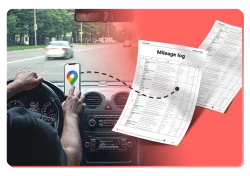
It’s important to understand that Google Maps itself does not function as a full, automated mileage logbook for tax or reimbursement purposes. It excels at route planning and point-to-point distance measurement, and the Google Timeline feature (when enabled) even saves your past visits. However, it doesn’t automatically record all your business trips, categorize them, or generate IRS mileage reports.

You’d need to manually go through each of your past trips, determine their purpose, calculate their mileage, and collect them into a neat mileage log, which can be very time-consuming and prone to errors. The prospect of this grueling work often leads people to look for better solutions.

Beyond Google Maps: MileageWise for Streamlined Tracking

While Google Maps is a fantastic Google Maps mileage calculator tool for quick lookups, it falls short when you need a comprehensive mileage log. This is where MileageWise steps in.

With MileageWise, you don’t need to manually calculate distances, whether they’re from spreadsheet logs, Google Timeline, or off the top of your head. MileageWise automatically handles the heavy lifting, making your mileage calculations simple and accurate.

Try MileageWise for free for 14 days. No credit card required!

Mileage Log from Google Maps App

Google Play store

Desktop Google Timeline Import

FAQ

Open Google Maps, enter your destination, and select Directions. Add your starting point and choose the car icon to see driving mileage. Compare the available routes and select the one you plan to take. Use Directions for road mileage rather than the straight-line “Measure distance” tool. More info on Google’s related help forum.

Yes. You can add up to nine stops, including your final destination, to a Google Maps driving route. On desktop, select Add destination after entering your starting point and first destination. Arrange the stops in your planned travel order to calculate mileage for the full route.

Add your starting address again as the final destination. This lets you check both directions instead of simply doubling the one-way mileage. The return route may differ because of one-way streets or your chosen stops.

Google Maps Directions shows the distance of a selected route. Your actual mileage may differ if you take detours, make extra stops, or follow another road. For mileage records, check that the route matches your trip instead of assuming the suggested route reflects your drive.

Google Maps can help calculate route distances, but a distance calculation alone is not a complete business mileage log. For U.S. tax records, document each business trip’s date, destination, purpose, and mileage, along with other required vehicle-use records. Regular travel between home and your main workplace is generally nondeductible commuting. For reimbursement, follow your employer’s mileage policy.

Related Guides

Related Blogposts