
What do you want to find out?
Whether you’re logging ongoing trips or adding past trips, the MileageWise Mileage Tracker App makes manual trip recording simple and efficient. Here’s how to make the most of the Manual Stop Entry feature:
Ongoing Logging
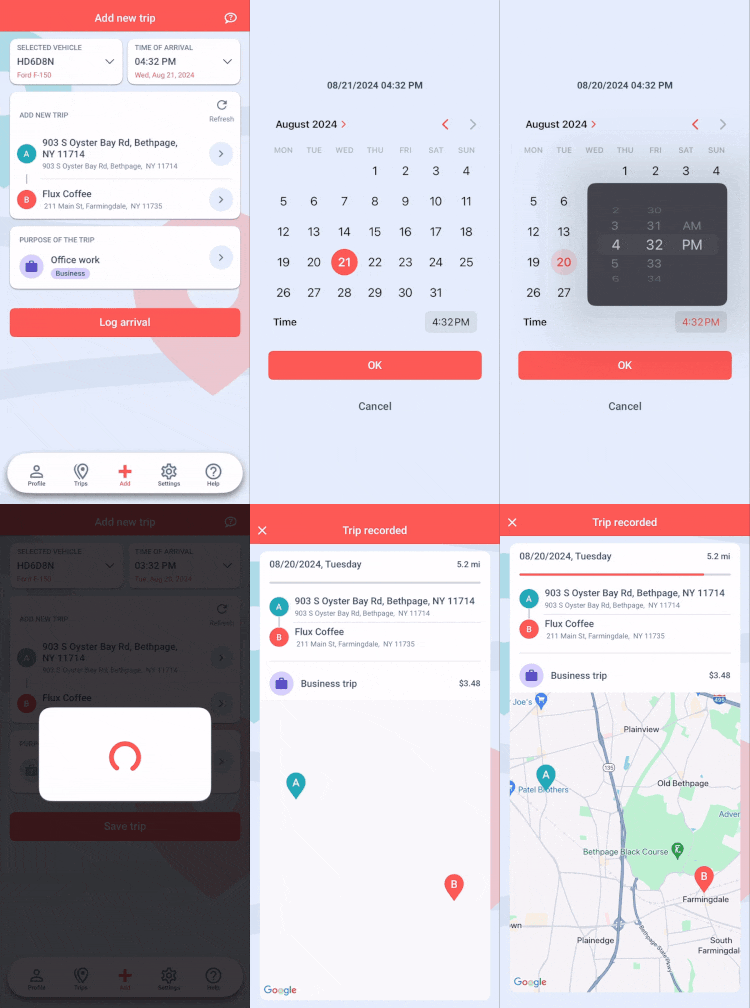
Manually log your trips with just a tap on the MileageWise mobile app for iOS and Android. No need to “start and stop” every time—you only need to log your arrival at each new destination.
- Point A (starting location) will automatically be set to your last logged location.
- Point B (arrival location) will be your current position.
How to Log a Trip:
- Open the app when you arrive at your destination.
- Press the “Log arrival” button to log the trip. That’s it!

Waze Integration:
If you select your next destination before departing, pressing the “Pre-save and Navigate with Waze” button will pre-record the trip (so you don’t have to record it upon arrival) and open the Waze app to navigate you there.
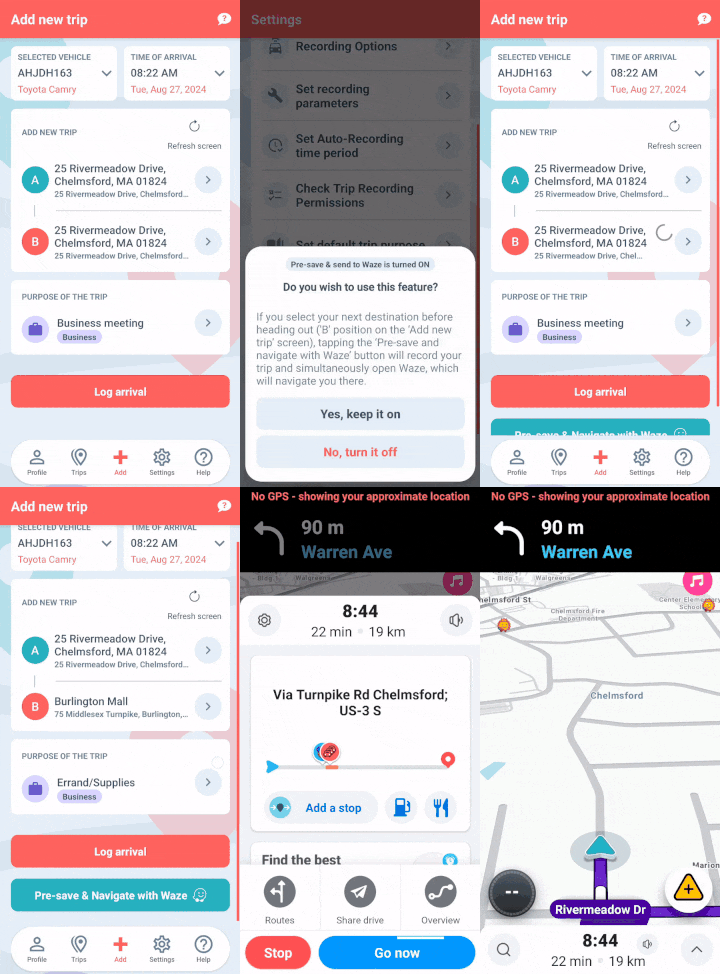
Pro Tip: If needed, you can adjust your starting or arrival location by selecting a different client/location from your list, or by adding a new one.
Adding Past or Forgotten Trips
If you missed logging a trip, you can easily add it to your timeline using the following methods:
Inserting a Missed Trip:
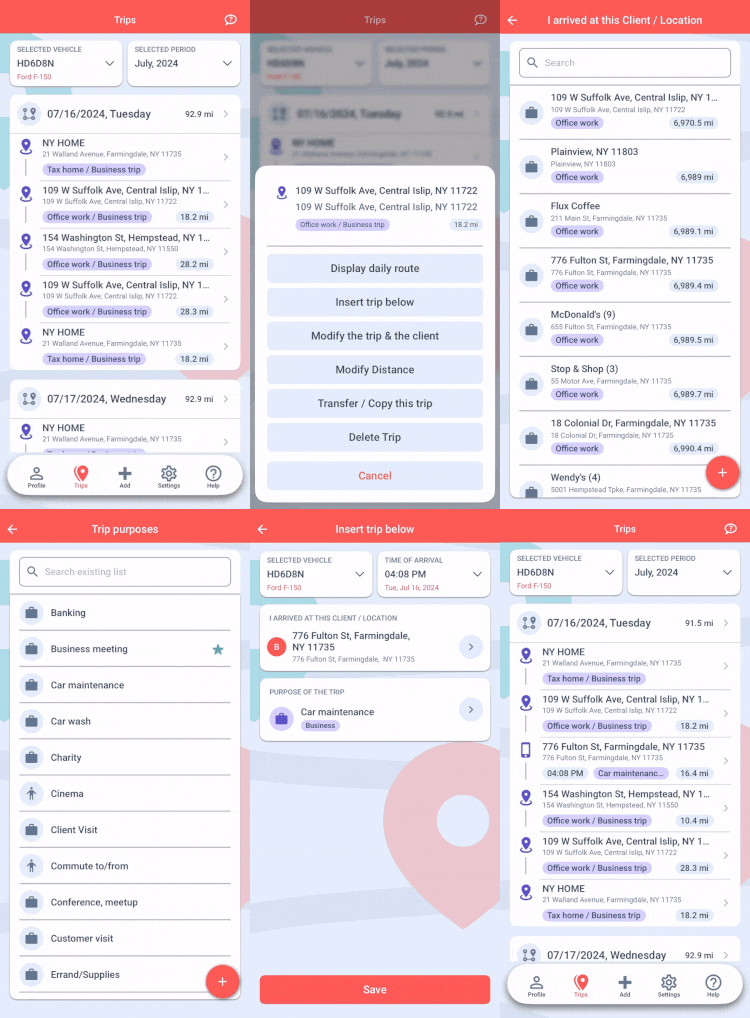
- Go to the Trips menu.
- Tap on the stop that came right before the missed location.
- Select ‘Insert trip below’ from the pop-up options.
- Add your missed stop, set the timestamp for the time of arrival, select the purpose of the trip, and hit Save.
This method ensures the new trip fits seamlessly into your existing timeline.